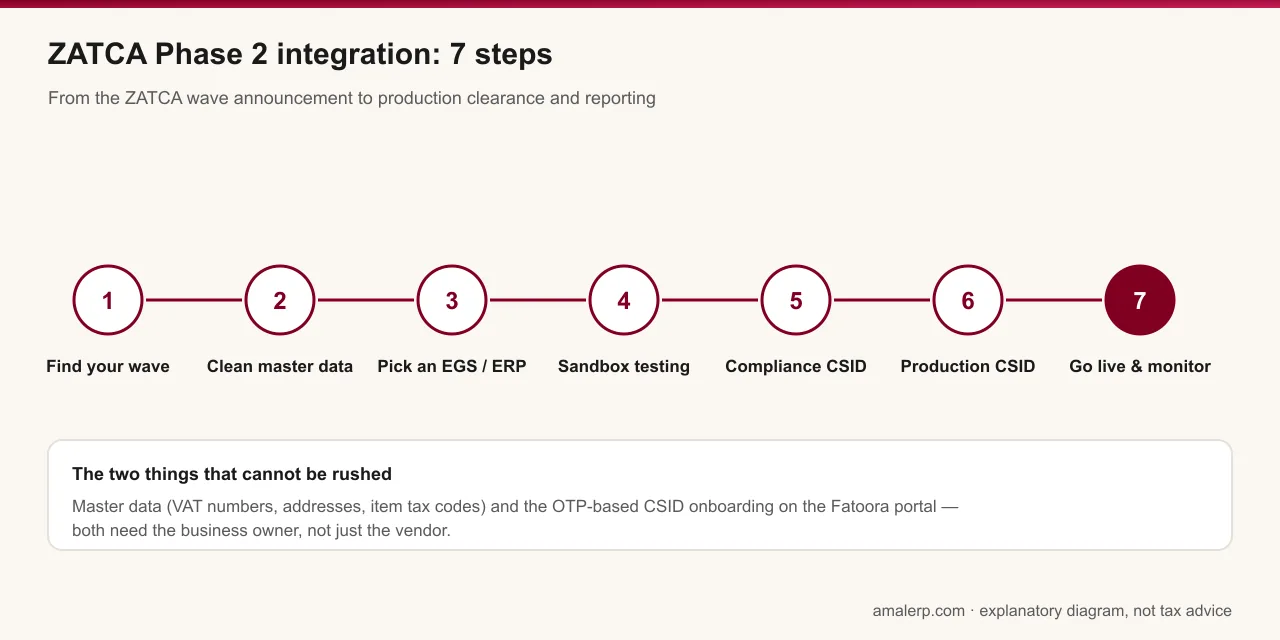
Integrating with ZATCA Phase 2 comes down to ten steps: know your wave, decide your document types, clean your data, choose a system, test it, generate an OTP on the Fatoora portal, obtain a Compliance CSID, pass the compliance checks, obtain a Production CSID, and then operate — reporting simplified invoices within 24 hours and renewing certificates before they expire. Two of those steps cannot be delegated to a vendor: the data clean-up and the portal onboarding both need the business itself.
This checklist is written for the owner or finance manager who has to make it happen, not for the developer writing the XML. Each step says what it is, who does it and what goes wrong.
Step 1 — Find your wave and write down the deadline
ZATCA assigns Phase 2 in waves by VAT-liable revenue and notifies each wave at least six months before its integration date. Compare your revenue for the reference years against the thresholds: Wave 24 covered businesses above SAR 375,000 in 2022, 2023 or 2024 with a deadline of 30 June 2026; Wave 25, announced 24 July 2026, covers businesses above SAR 187,500 in 2022, 2023, 2024 or 2025 and must be integrated by 1 February 2027. The full table of all 25 waves is on our Phase 2 page. If your deadline has already passed, the rest of this list is urgent, not optional.
Step 2 — Decide which document types you issue
Standard tax invoices (B2B/B2G, cleared in real time), simplified tax invoices (B2C, reported within 24 hours), or both — and credit and debit notes against each. This matters early because it becomes the functionality map on your onboarding request: a unit that issues standard documents only, simplified only, or both is tested with the matching sample documents. A wholesaler with a shop counter needs both.
Step 3 — Clean your master data
This is the step that decides whether go-live takes a week or a quarter. Phase 2 XML fails validation on data a printed invoice would have forgiven. Check every business customer has a correct 15-digit VAT number (starts and ends with 3) and a structured address — building number, street, district, city, postal code — rather than one free-text line. Check every item has a tax category (standard 15%, zero-rated, exempt, out of scope) and a unit of measure. Check your own registration details match what ZATCA holds. Start this before you choose software; it is needed with any vendor.
Step 4 — Choose your e-invoice generation solution
There are two routes. A natively integrated ERP or accounting system produces the XML, signs it and talks to the Fatoora APIs itself. Alternatively, your existing system hands invoice data to a middleware provider that signs, clears or reports and returns the QR code. Either is acceptable; ZATCA states that a taxpayer whose solution meets the requirements is compliant whether or not the provider appears in its directory, and that the directory is not an approval. So ask for evidence rather than badges: a Production CSID obtained for a real Saudi taxpayer, a cleared standard invoice with ZATCA's stamp, a reported simplified invoice with the nine-tag QR, and published pricing that includes Phase 2 for your number of users and devices. Some Saudi vendors sell a cheaper tier that stops at Phase 1.
Step 5 — Test in ZATCA's sandbox and simulation portal
ZATCA provides a developer sandbox and an SDK that validate XML, hashes, signatures and QR codes offline, and a simulation portal that rehearses the real onboarding flow without production consequences. A vendor that has done this work can show you the results; a vendor that has not will be learning on your deadline.
Step 6 — Log in to the Fatoora portal and generate an OTP
This is yours to do. Log in to the Fatoora portal with your ZATCA credentials and generate a one-time password for the invoicing unit you are onboarding. The OTP is valid for one hour, and the portal can issue up to a hundred at once for businesses onboarding many devices. Each till, branch system or invoicing instance is a separate unit with its own OTP, its own certificate, its own invoice counter and its own hash chain. A retailer with five tills does this five times.
Step 7 — Obtain the Compliance CSID
The software takes your OTP and submits a certificate signing request carrying your VAT number, the unit's name and serial, your organisation details, the functionality map from step 2, your location and industry. ZATCA returns a Compliance CSID — a temporary cryptographic stamp identifier used only for the next step.
Step 8 — Pass the compliance checks
Using the Compliance CSID, the unit submits sample documents of every type in its functionality map — a standard invoice with a credit and a debit note, a simplified invoice with a credit and a debit note, or all six — and ZATCA checks them against the XML Implementation Standard and the Security Features Implementation Standard. Failures here are usually data problems from step 3 or configuration problems the vendor fixes; they are not penalised.
Step 9 — Obtain the Production CSID and go live
After the checks pass, the unit requests its Production CSID. From that moment its clearance and reporting calls are real: standard invoices go to Fatoora and come back cleared with ZATCA's stamp and QR; simplified invoices are stamped locally and reported. Go live unit by unit rather than all at once if you can, and keep a short parallel period where someone checks the first day's documents against the platform's responses.
Step 10 — Operate: monitor, report within 24 hours, renew
- Watch clearance rejections and reporting failures every day for the first weeks. A rejected document is corrected and resubmitted; it is not deleted.
- Simplified invoices issued during an internet outage must be reported within 24 hours of issue. Make sure the queue flushes automatically on reconnect and that someone is alerted if it does not.
- If Fatoora itself is down, keep retrying. If your own system fails, notify ZATCA, keep trading and submit the backlog once fixed — that is the documented path.
- Certificates expire. Renew each unit's CSID before its expiry through the portal's renewal flow, which revokes the old certificate and issues a new one. A replaced device is re-onboarded from step 6.
- Keep the signed XML archive exportable and producible to ZATCA on request for the record-keeping period.
The two steps that cannot be rushed
Master data and portal onboarding. Vendors can write XML in a week; they cannot invent your customers' VAT numbers or log in to Fatoora as you. If your wave deadline is close, start step 3 today while you are still comparing software, and put the person who holds the ZATCA login in the room for step 6.
General information, not tax advice. Onboarding details are from ZATCA's E-Invoicing Detailed Guidelines and Developer Portal Manual; confirm the current process on zatca.gov.sa and the Fatoora portal.